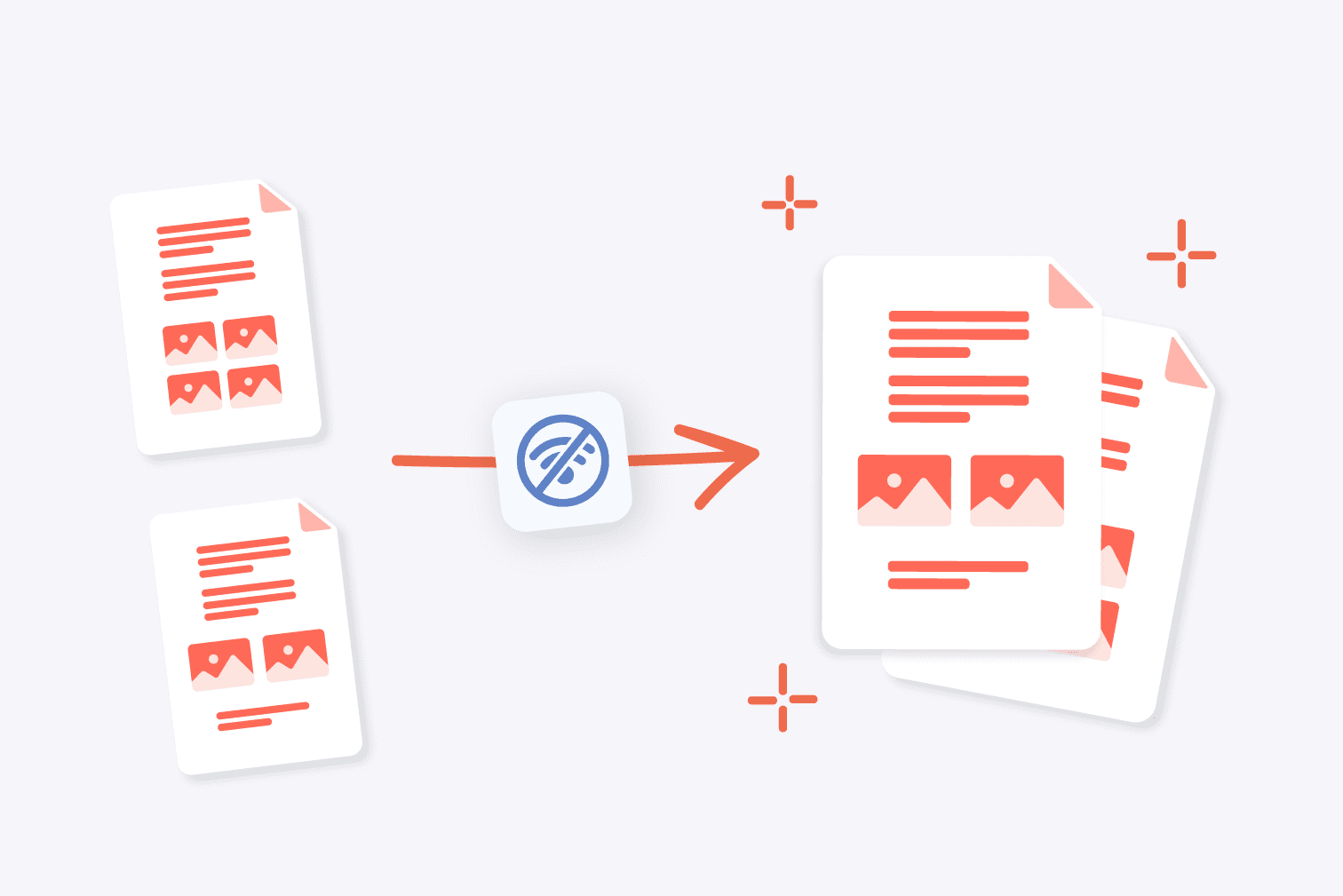
Working with multiple PDF files can quickly become messy.
You might have:
- Several scanned pages
- Multiple reports
- Separate documents that should be one file
And sending them individually is:
👉 Unprofessional
👉 Confusing
👉 Hard to manage
The solution is simple:
👉 Merge multiple PDFs into one clean file
This guide will show you how to do it quickly on any device.
Why You Should Merge PDFs
Combining PDFs helps you:
- Keep documents organized
- Share files more easily
- Present information professionally
- Reduce confusion
👉 One file is always better than many.
Method 1: Merge PDFs on Windows (No Software Needed)
Windows allows merging using browser or print methods.
Option 1: Using Microsoft Edge
- Open first PDF with Edge
- Print → Choose Microsoft Print to PDF
- Add pages manually (less efficient)
👉 Works, but not ideal for many files.
Better Option: Use Free Tools
Steps:
- Upload PDFs
- Arrange order
- Click Merge
- Download combined file
👉 Fast and easy.
Method 2: Merge PDFs on Mac
Mac has built-in support.
Steps:
- Open PDFs in Preview
- Show thumbnails
- Drag files into one document
- Arrange pages
- File → Export as PDF
👉 Very clean workflow.
Method 3: Merge PDFs on iPhone
Option 1: Files App
- Open Files
- Select multiple PDFs
- Tap Merge (or use shortcuts)
Option 2: Use apps:
Method 4: Merge PDFs on Android
Use apps like:
- Adobe Acrobat
- PDF Merge apps
- iLovePDF mobile
Steps:
- Upload PDFs
- Arrange order
- Merge
- Save
Step 5: Arrange File Order (Important)
Before merging:
👉 Always check file order
Because:
- PDF will follow that order
- Fixing later is harder
Step 6: Remove Unnecessary Pages
Before merging:
- Delete duplicates
- Remove blank pages
👉 Keeps file clean and professional.
Step 7: Rename Final File Properly
Avoid:
Use:
- Project_Report_2026
- Contract_Complete
👉 Makes it easier to find later.
Step 8: Compress After Merging (Optional)
If file is too large:
👉 Compress PDF after merging
Tools:
Step 9: Store or Share
After merging:
- Upload to Google Drive
- Send via email
- Share link
👉 One file = easier workflow.
Step 10: Build a Simple Workflow
Whenever you handle PDFs:
👉 Follow this:
- Collect files
- Arrange order
- Merge
- Rename
- Share
Common Mistakes to Avoid
- Wrong page order
- Merging unnecessary files
- Forgetting to rename
- Sending multiple PDFs instead of one
- Not checking final file
Quick Method (Fastest Way)
If you need speed:
👉 Use iLovePDF / Smallpdf
- Upload → Merge → Download
Done in under 1 minute.
Final Thoughts
Merging PDF files is a simple skill that makes your work more organized and professional. Instead of dealing with multiple documents, combining everything into one file helps you communicate clearly and manage files more efficiently.
Once you get used to it, this becomes part of your everyday workflow—and saves you time every time.
Related