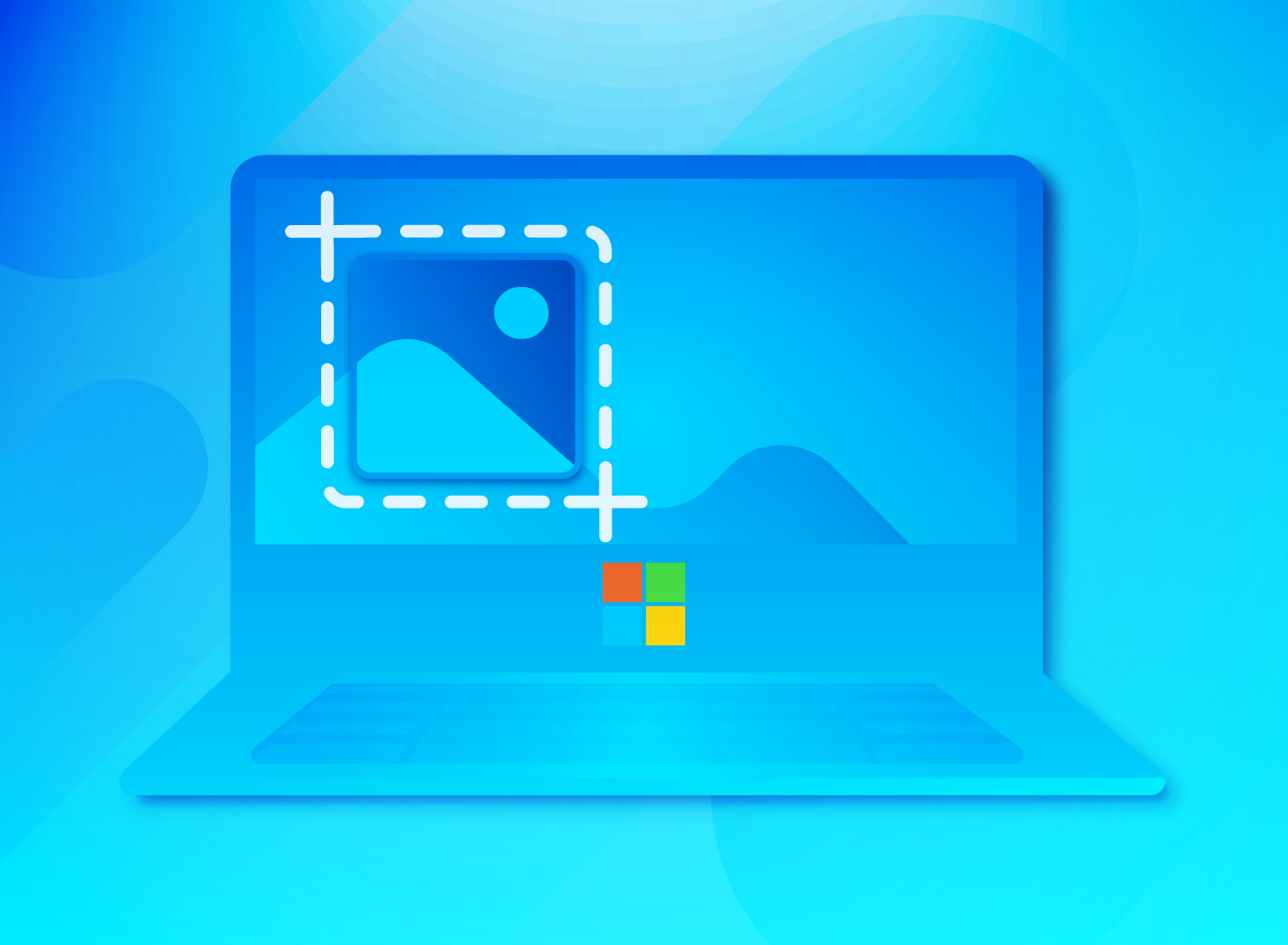
Taking a screenshot is one of the most useful everyday skills—but surprisingly, many people still don’t know the fastest or best way to do it.
You might want to:
- Save important information
- Share something quickly
- Capture errors or messages
- Keep records or proof
The problem is:
👉 Each device has a different method
This guide will show you how to take screenshots on any device, plus a few pro tips to make it faster and cleaner.
What Is a Screenshot?
A screenshot is simply:
👉 A capture of what’s on your screen
It can be:
- Full screen
- Partial area
- Specific window
Method 1: Screenshot on Windows
Full Screen:
- Press PrtScn
👉 Captures entire screen
Save Automatically:
- Press Windows + PrtScn
👉 Saved to Pictures → Screenshots
Select Area (Best Method):
- Press Windows + Shift + S
👉 Choose area to capture
This opens the Snipping Tool.
Method 2: Screenshot on Mac
Full Screen:
- Press Command + Shift + 3
Select Area:
- Press Command + Shift + 4
Specific Window:
- Press Command + Shift + 4, then press Spacebar
👉 Very flexible and clean.
Method 3: Screenshot on iPhone
With Face ID:
With Home Button:
👉 Screenshot appears → edit or save
Method 4: Screenshot on Android
Most Android phones:
- Press Power + Volume Down
Alternative:
- Use gesture (depends on device)
- Use quick menu shortcut
Step 5: Edit Your Screenshot
After capturing:
You can:
- Crop unnecessary parts
- Highlight important areas
- Add text or arrows
👉 Makes screenshots clearer and more useful.
Step 6: Know Where Screenshots Are Saved
Windows:
Mac:
Phone:
👉 Knowing location saves time.
Step 7: Take Scrolling Screenshots
For long pages:
On phones:
- Use “Scroll Capture” or “Full Page”
On desktop:
👉 Useful for:
- Articles
- Chats
- Long documents
Step 8: Use Screenshots for Work
Screenshots are useful for:
- Tutorials
- Reporting issues
- Sharing feedback
- Saving receipts
👉 Faster than explaining with text.
Step 9: Keep Screenshots Organized
Don’t let them pile up.
Tips:
- Rename important screenshots
- Move to folders
- Delete unnecessary ones
Step 10: Use Shortcuts for Speed
Once you learn shortcuts:
👉 Screenshot takes less than 1 second
This saves a lot of time daily.
Common Mistakes to Avoid
- Capturing too much screen
- Not cropping
- Forgetting where files are saved
- Taking blurry photos instead of screenshots
- Keeping too many unused screenshots
Quick Shortcut Summary
- Windows → Win + Shift + S
- Mac → Cmd + Shift + 4
- iPhone → Power + Volume Up
- Android → Power + Volume Down
👉 Remember these → you’re set.
Final Thoughts
Taking screenshots is a simple skill—but once you master it, it becomes one of the fastest ways to capture, share, and communicate information.
With the right shortcuts and a few small habits, you can make your workflow faster, cleaner, and more efficient every day.
Related