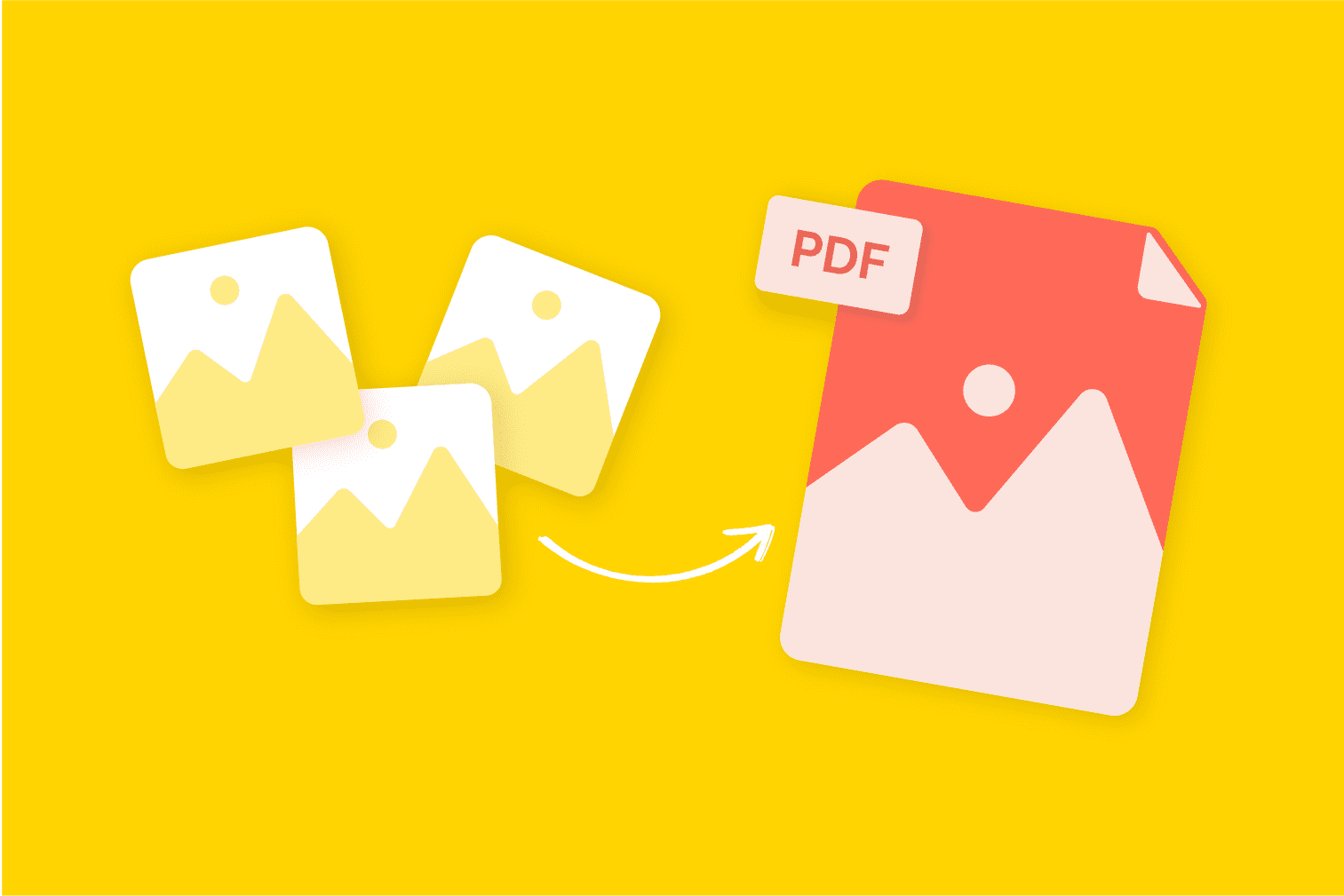
At some point, you’ll need to turn images into a PDF.
Maybe it’s:
- Sending documents
- Submitting forms
- Combining multiple photos into one file
- Making files look more professional
But many people struggle with this simple task.
They either:
- Send multiple images separately
- Use complicated tools
- Lose quality during conversion
👉 The truth is: converting images to PDF is very simple if you know the right method.
This guide will show you how to do it quickly on Windows, Mac, iPhone, and Android.
Why Convert Images to PDF?
PDF files are better because:
- Everything stays in one file
- Easy to share
- Looks professional
- Works on all devices
- Keeps layout consistent
👉 That’s why PDF is the standard format for documents.
Method 1: Convert Images to PDF on Windows (No Software Needed)
Windows has a built-in feature.
Steps:
- Select your images
- Right-click → Print
- Choose Microsoft Print to PDF
- Click Print
- Save the file
👉 Done. Your images are now one PDF.
Method 2: Convert Images to PDF on Mac
Mac also has a built-in method.
Steps:
- Select images
- Right-click → Open with Preview
- Select all images in sidebar
- Go to File → Export as PDF
- Save
👉 Very clean and simple.
Method 3: Convert Images to PDF on iPhone
You don’t need any app.
Steps:
- Open Photos
- Select images
- Tap Share
- Choose Print
- Zoom in preview (this converts to PDF)
- Tap Share → Save as PDF
👉 Hidden trick but very powerful.
Method 4: Convert Images to PDF on Android
Option 1: Google Drive
- Open Google Drive
- Tap + → Scan
- Capture or upload image
- Save as PDF
Option 2: Files by Google
Method 5: Use Online Tools
If you don’t want to use device tools:
Popular websites:
How:
- Upload images
- Arrange order
- Convert
- Download PDF
👉 Good for quick use.
Step 6: Arrange Image Order Before Converting
Before converting:
👉 Make sure images are in correct order
Because:
- PDF will follow that order
- Fixing later is harder
Step 7: Adjust Image Quality
To avoid quality loss:
- Use high-resolution images
- Avoid compressing before converting
- Choose “high quality” settings if available
Step 8: Combine Multiple Images into One File
One of the biggest benefits:
👉 Combine many images → 1 PDF
Useful for:
- Documents
- Receipts
- Notes
- Reports
Step 9: Rename and Organize the File
After converting:
Rename clearly:
- Document_Scan_2026
- Receipts_March
👉 Avoid names like “file1.pdf”
Step 10: Store or Share the PDF
You can now:
- Email it
- Upload to Google Drive
- Send via link
- Store in cloud
👉 Much easier than sending multiple images.
Common Mistakes to Avoid
- Sending images instead of PDF
- Wrong image order
- Low-quality images
- Using too many tools
- Not renaming files
Quick Method (Fastest Way)
If you’re in a hurry:
- Windows → Print to PDF
- Mac → Preview → Export
- Phone → Use Share → Print trick
👉 Takes less than 1 minute.
Final Thoughts
Converting images to PDF is one of those simple skills that makes your digital workflow much more professional and efficient. Whether you’re working, studying, or organizing personal files, knowing how to combine and convert images properly saves time and avoids confusion.
Once you start using PDFs instead of sending multiple images, everything becomes cleaner, faster, and easier to manage.
Related