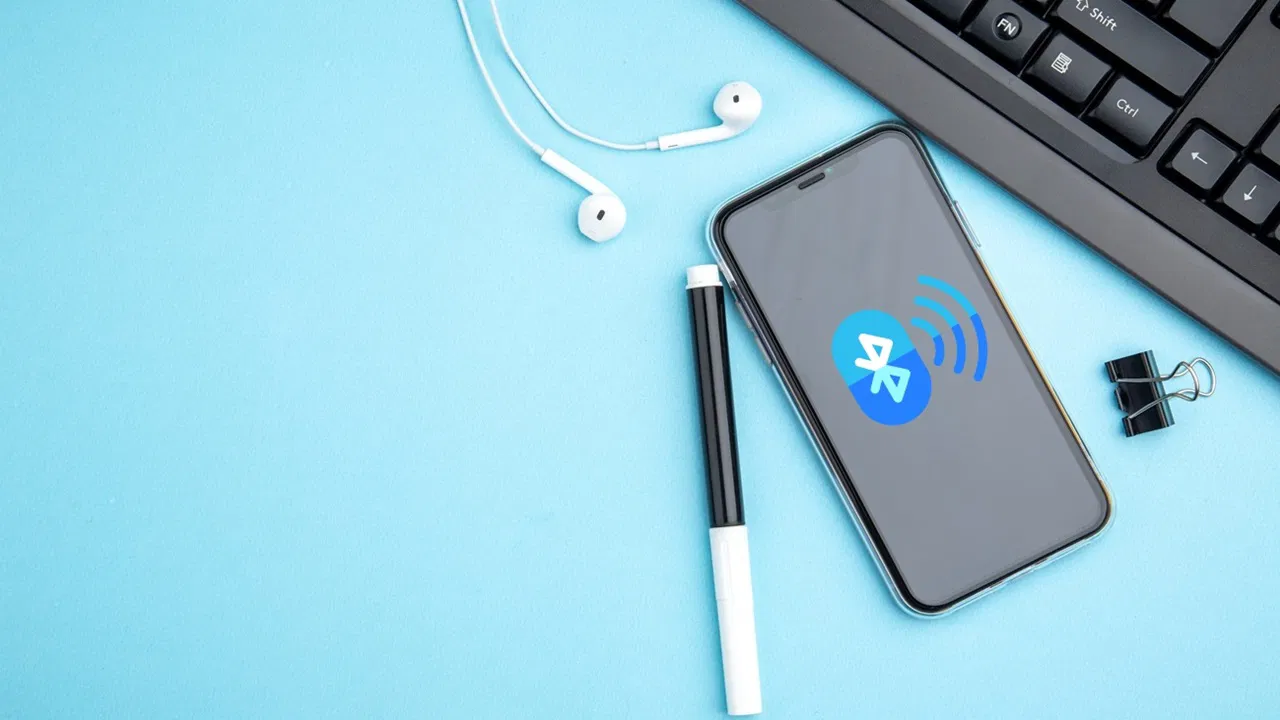
Bluetooth is a convenient way to connect wireless devices such as headphones, speakers, keyboards, and phones. However, one of the most common issues users face is when Bluetooth simply won’t connect.
You may experience problems like:
These issues can happen on phones, laptops, or tablets, and are usually caused by software glitches, interference, or incorrect settings.
The good news is that most Bluetooth connection problems can be fixed with simple troubleshooting steps.
This guide will walk you through how to fix Bluetooth not connecting.
Before fixing the issue, it helps to understand the common causes:
Identifying the cause makes it easier to solve.
This is the simplest fix and often works immediately.
To do this:
This refreshes the connection and clears temporary errors.
Bluetooth issues can be caused by temporary software glitches.
Restart:
After restarting, try pairing again.
If your device does not appear in the Bluetooth list, it may not be in pairing mode.
To fix this:
Each device may have a different method for enabling pairing mode.
Sometimes saved connections become corrupted.
To fix:
This resets the connection.
Bluetooth works best at short distances.
Make sure:
Devices like WiFi routers and microwaves can affect Bluetooth signals.
Bluetooth devices may struggle if connected to multiple devices at once.
For example:
Disconnect other devices and try reconnecting again.
Outdated software can cause compatibility issues.
To update:
Settings → Software Update
Settings → Windows Update
System Settings → Software Update
Keeping your system updated improves Bluetooth stability.
Some apps require Bluetooth permissions to function properly.
To check:
This is especially important for apps that control Bluetooth devices.
If Bluetooth problems persist, resetting network settings may help.
Settings → General → Transfer or Reset → Reset Network Settings
Settings → System → Reset → Reset Network Settings
This will reset WiFi, Bluetooth, and mobile data settings.
If none of the steps work, the problem may be hardware-related.
Possible issues include:
Try connecting the device to another phone or computer to confirm.
To maintain stable Bluetooth connections:
These habits improve reliability.
Bluetooth connection issues can be frustrating, but they are usually easy to fix. By restarting devices, reconnecting properly, reducing interference, and updating software, you can restore stable connections quickly.
If the issue continues across multiple devices, it may be time to check for hardware problems or replace the device.
Understanding these troubleshooting steps helps ensure smoother wireless connections in everyday use.